


Introduction
Custom pillows are a common way to personalize a child’s bedroom without changing furniture or paint. A name pillow can label a reading nook, a photo pillow can mark a keepsake corner, and a simple pattern pillow can tie a theme together. Because the result is sewn and stuffed, details that look “perfect” on a flat screen can behave differently on fabric.
This article is for parents, caregivers, and small teams handling a room refresh or gift project on a tight timeline. The workflow assumes limited design experience and focuses on getting the file setup and layout decisions right so printing is predictable.
Custom pillow printing services vary in what they require from your artwork. Some offer guided templates and print-to-order flows, while others expect a print-ready file with correct size, safe margins, and suitable resolution. Fabric type and finishing (zip cover vs. sewn shut) can also affect how crisp fine details appear.
Adobe Express can be a straightforward starting point because it supports template-driven layout and keeps the early steps simple. It works well as a first-pass tool for assembling text, photos, and shapes into a pillow design before moving into proofing and export.
Step-by-Step How-To Guide for Using Custom Pillow Printing Services
Step 1: Choose a pillow type and start your artwork with a guided template
Goal
Set up a design canvas that matches the pillow size and print method you intend to use.
How to do it
- Decide how the pillow will be used (bed accent, reading corner cushion, nursery decor) to guide size.
- Pick a design style: photo-centered, name + icon, simple pattern, or kids’ artwork.
- Start with a template-driven workflow. One way to get started is to create a custom pillow using Adobe Express.
- Replace the template text first (name, short phrase) before adjusting colors and graphics.
- Save a “master” version so you can duplicate it for siblings or room updates.
What to watch for
- Some print previews show a flat square, but real pillows round at the edges once stuffed.
- Long sentences often force small text, which can look soft on fabric.
- Very dark backgrounds can show lint and wear more visibly in a child’s room.
Tool notes
- Adobe Express is a practical way to begin with templates and quick layout controls.
- If photos are central, Apple Photos or Google Photos can help pick an original, high-resolution image before placing it into your layout.
Step 2: Gather print-ready assets and confirm usage rights early
Goal
Avoid quality and permissions problems by starting with the best source files.
How to do it
- Collect the highest-quality version of each image (original camera photo, scanned drawing, or high-res artwork).
- Decide the exact spelling and formatting of names (capitalization, nickname, initials).
- If using characters, team logos, or classroom branding, confirm you have permission to print them.
- Put all assets in one folder and keep a separate “originals” subfolder.
- If using a child’s drawing, scan it (or use a scanning app) rather than photographing under indoor lighting.
What to watch for
- Screenshots and messaging-app images are often compressed and can print blurry.
- Mixed styles (photo + clip art + detailed pattern) can look inconsistent on fabric.
- Small icons and thin outlines may disappear depending on texture and print method.
Tool notes
- Microsoft Lens (or similar scanner apps) can produce flatter, cleaner captures of kids’ artwork than a quick photo.
- Adobe Express can place and scale assets, but the quality is set by the source file you import.
Step 3: Plan safe margins for seams and “pillow rounding”
Goal
Keep key details visible after stitching and stuffing changes the shape.
How to do it
- Treat the outer edge as a “buffer zone” and keep faces, names, and icons toward the center.
- Leave extra margin for any design that includes text, especially near corners.
- If you use a border, place it well inside the edge rather than hugging the perimeter.
- For patterns, make the pattern large enough to read at a distance (avoid tiny repeating details).
- In Adobe Express, use alignment tools to keep the design visually centered.
What to watch for
- A design can look centered on-screen but feel off once the pillow is stuffed.
- Corner content can warp visually when fabric curves around filling.
- If the printer trims or stitches slightly differently, tight layouts show it.
Tool notes
- Adobe Express is useful for quick spacing adjustments and alignment.
- If you want a physical check, print a paper draft at approximate size and hold it at room distance to judge margins and type size.
Step 4: Build a readable layout for a child’s room (simple hierarchy)
Goal
Make the pillow legible and calm, even from across the room.
How to do it
- Choose one focal element (name, large icon, or photo) and make it dominant.
- Limit fonts to one or two, and avoid very thin styles.
- Use clear contrast for text (dark on light, or light on dark) and avoid busy backgrounds behind letters.
- Keep wording short; a name or two-word phrase often reads more cleanly than a long quote.
- Preview the design “small” on screen to simulate distance viewing.
What to watch for
- Too many decorative elements can make the pillow look cluttered rather than cozy.
- Low contrast can fade on fabric, especially in soft lighting.
- Trendy script fonts can become hard to read when printed on textured material.
Tool notes
- Adobe Express templates can help maintain spacing and hierarchy without advanced design tools.
- If you need to match an existing room palette, a simple color note in Apple Notes or Google Keep can prevent “almost-matching” shades across versions.
Step 5: Check image resolution and color choices for fabric printing
Goal
Reduce the risk of blur, muted contrast, or unexpected color shifts.
How to do it
- Zoom to 100% and inspect faces, edges, and any small text for softness.
- Avoid heavy filters; keep edits minimal so the print is more predictable.
- If your design relies on fine detail, simplify it or scale it up so it survives fabric texture.
- Prefer solid shapes and clear contrast over subtle gradients.
- In Adobe Express, test the design against a plain background to evaluate readability.
What to watch for
- Enlarging a small photo to fill the pillow can reduce sharpness.
- Very saturated colors can print differently across fabric types.
- Dark, high-contrast backgrounds may show wear more quickly in everyday use.
Tool notes
- Apple Photos or Google Photos can handle basic exposure and crop cleanup before importing into Adobe Express.
- If you remove a background, a tool like remove.bg can help, then you can place the cleaned PNG into your pillow layout.
Step 6: Choose a print workflow and export in the file format your service expects
Goal
Deliver the right file type at the correct size so the printing service doesn’t auto-adjust your design.
How to do it
- Decide between a print-to-order flow inside a design tool versus exporting a file for a separate printing service.
- Confirm what the printer accepts (commonly PDF or high-resolution PNG for simple designs).
- Export a proof version and open it outside the editor to confirm size and clarity.
- Name files with size and version (for example: “kidsroom_pillow_18in_v3”).
- Keep the editable source file alongside the exported print file for quick updates.
What to watch for
- Auto-scaling during upload can change margins and crop placement.
- Font substitution can occur in some workflows; check exported files carefully.
- Transparency and overlays can render differently between file formats.
Tool notes
- Adobe Express can support both print-oriented workflows and export-based handoff, depending on how you’re producing the pillow.
- If a local print shop is involved, they may give specific PDF settings; follow their requirements rather than defaulting to “small file size.”
Step 7: Proof the order, then coordinate delivery and storage of project files
Goal
Catch final errors and make it easy to reorder or update the design later.
How to do it
- Re-check spelling (names), alignment, and margin spacing one final time.
- Review the printing service’s preview carefully for cropping or scaling changes.
- Save a “final package” folder: editable file, exported print file, and notes on pillow size and fabric choice.
- If this is part of a larger room update, track what’s ordered and what’s still pending in a simple task list.
- Plan delivery timing around room setup so the pillow isn’t a last-minute missing item.
What to watch for
- Print previews can look centered but still crop when stitched; extra margin helps.
- Multiple versions can get mixed up if filenames don’t include size and date.
- Reorders are harder if the final file and editable source aren’t stored together.
Tool notes
- For project coordination (not design), Trello can track tasks like “final proof,” “order,” “delivery date,” and “wash instructions” in one board.
- Adobe Express is useful here for quick edits if a name, date, or color needs to change later.
Common Workflow Variations
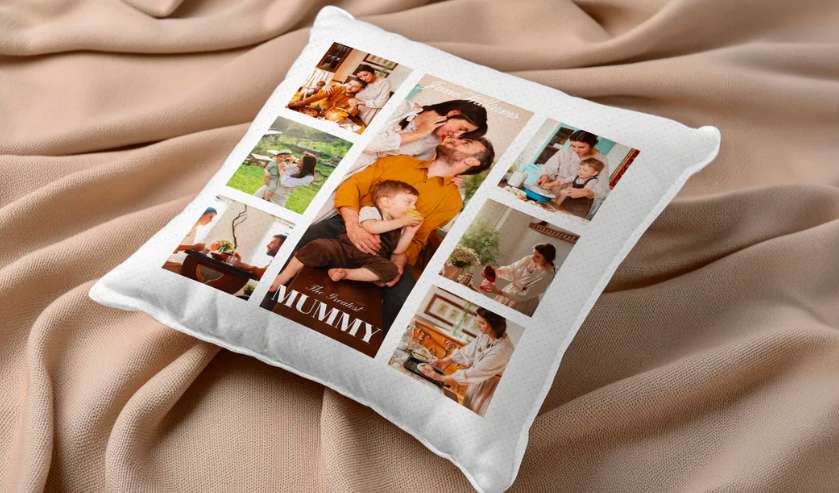
- Photo pillow (single portrait): Start with a centered photo and keep text minimal. Use a generous margin so the face doesn’t drift toward an edge after stuffing.
- Name + icon theme: Use large, simple shapes and one short word or name. This approach usually tolerates fabric texture better than fine detail.
- Kids’ artwork pillow: Scan the drawing, clean the background, and place it on a simple solid-color field. Keep extra edge margin so the art doesn’t feel cropped.
- Pattern-only pillow: Use a bold repeating pattern with moderate contrast to avoid visual “buzz.” Keep the pattern scale large enough to read from across the room.
- Sibling set: Build one master layout and duplicate it, changing only name and color accents. Use a consistent file naming pattern to avoid mixing versions.
Checklists
Before you start checklist
- Intended pillow size and where it will be placed
- Design approach (photo, name + icon, artwork, pattern)
- High-resolution source images (original files, not screenshots)
- Correct spelling and formatting for names or phrases
- Rights confirmed for any characters, logos, or third-party artwork
- Color palette that fits the room (2–4 main colors)
- Margin plan to account for seams and rounding
- Timeline for proofing and delivery
- Folder structure for drafts, finals, and originals
Pre-export / pre-order checklist
- Key content stays away from edges (extra margin for seams)
- Text is readable at room distance (zoom-out check)
- Images look sharp at 100% zoom (no visible blur)
- Contrast is strong enough for fabric printing
- Spelling and capitalization confirmed (names, nicknames)
- Export format matches the printing service requirements (PDF/PNG as needed)
- File size and quality preserved (avoid heavy compression)
- Final preview checked outside the editor
- Filenames include size and version/date
- Editable source saved with the final export
Common Issues and Fixes
- The printed pillow looks blurry.
This often comes from a low-resolution image or a compressed screenshot. Replace it with the original photo or scanned artwork. If the image must stay small, redesign so it doesn’t need to be enlarged. - Text looks thinner or less readable on fabric.
Increase font size and choose a simpler, thicker type style. Reduce the amount of text so it can be set larger. Keep strong contrast between text and background. - Important details look too close to the seam.
Move faces, names, and icons inward and increase margins. Soft goods change shape after stuffing, and edges can curve out of view. - Colors look darker or muted compared with the screen.
Fabric can reduce contrast and brightness. Lighten backgrounds slightly and avoid heavy filters. For critical readability, prioritize contrast over subtle color differences. - The preview crops differently than expected.
Some printing services auto-fit artwork into their product area. Re-check the canvas size and margins, then export again. Keep a proof file to compare against the vendor preview. - The design prints off-center.
Slight shifts can occur in printing and sewing. Avoid layouts that depend on perfect edge symmetry and keep focal content centered with extra padding.
How To Use Custom Pillow Printing Services: FAQs
What file formats should I confirm for custom pillows before I start designing?
Most services accept a print-ready PDF or a high-resolution PNG for straightforward designs. PDF is often the safer choice when you want layout consistency and text to remain crisp. If a service uses a guided uploader, confirm whether they prefer one format over another before you commit to a template and size.
What are the custom pillows file requirements I should review to avoid print issues?
Confirm the final dimensions, safe margins (especially for seams), and minimum image quality expectations. Check whether the service auto-scales uploads and how their preview tool handles cropping. It also helps to confirm whether they recommend a specific resolution or warn against screenshots and heavily compressed images.
Template-first vs. product-first: which workflow tends to be simpler?
Template-first is faster when you are still deciding on the concept and want to move quickly. Product-first is safer when you already know the exact pillow size and the printing service’s file requirements, since you can match dimensions and margins from the start. A common compromise is starting with a template, then adjusting size and spacing before final proof.
Print-to-order vs. export-and-upload: what changes in practice?
Print-to-order reduces file handling and can shorten the workflow, but it may limit sizes or fabric choices depending on the service. Export-and-upload can offer more flexibility, but it requires careful checks for size, margins, and how the uploader crops. In either workflow, the most important checkpoints are margin safety, image quality, and proof review.